Customising a WooCommerce category page is straightforward with Elementor Pro. Without any coding knowledge, you can load the products, add the category description and design the page to your liking. This can be particularly useful if you want to improve the findability of different categories or perhaps add certain calls-to-action to the page. In this article, I will explain how to customise a WooCommerce category page with Elementor Pro.
Step 1: Create categories
I will assume that you have already set up categories for your products in the webshop. If you have not done this yet, do so first. Also fill in the category description in advance, should you want to display it on the category page later. Make sure you have already assigned products to the categories as well — this makes it somewhat easier to shape the page properly.
Step 2: Create a product archive page
You customise a WooCommerce category page by creating a new archive template using Elementor Pro. Here is how:
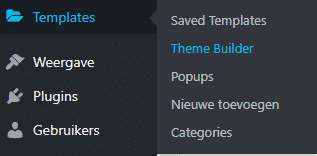
- Go to Elementor -> Theme Builder
- Choose ‘Add New’
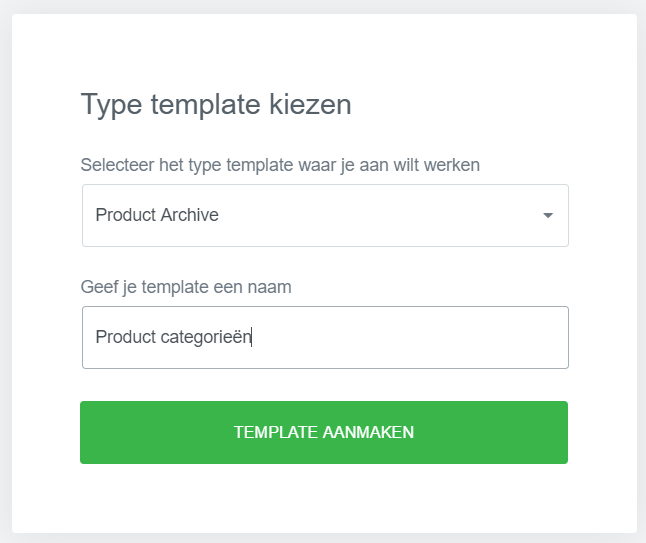
- Select ‘Product Archive’
- Give the template a name. For example: ‘Product categories’.
You will then see a popup from which you can choose from various default templates. If you do not want to use these, close it by clicking the cross.
Step 3: Customise the WooCommerce category page
Product archive widgets
With the product archive widgets, you can display the correct products, and add the category title and description:
Archive Title
This widget automatically loads the title of the WooCommerce category page. For example ‘books’. Note: if you choose this widget, the taxonomy title is automatically included — in this case ‘Category’. So you get ‘Category: books’. If you do not want this, you can disable it by setting ‘Include context’ to ‘No’. You do this by clicking on the title.
Archive Products
Displays the products in the specific category. You do not need to select the category first with this widget (as you would with the posts widget). The correct products are loaded automatically. The extent to which you can customise this display depends on the theme you are using. With OceanWP, for example, you see the options and message shown below. If you want to make adjustments, it is best to do so via the theme’s customiser.
Below you can see an example of the options with the Astra theme. As you can see, you can adjust columns and rows here. You can also set pagination and the number of search results. But with this theme as well, you are better off adjusting these settings via the customiser.
Archive Description
This displays the product category description (provided you have filled it in).
Using other Elementor widgets
Additionally, you can further design the page with other Elementor widgets. Do bear in mind: this product archive page is used for all categories. The information you place on this page will therefore be shown for all categories. If you want to place more information or use a specific layout for a particular category, you will need to create multiple product archive pages, published only for that category (see step 4).
Setting up the preview
When you are working on customising the WooCommerce category page, it is handy to set a category in the preview settings. Here is how:
- Click the cog icon at the bottom left to go to ‘Settings’.
- Click the ‘Preview settings’ tab
- Select ‘Product Categories Archive’
- Then select a category you want to preview.
- Click ‘Apply & Preview’. The page will reload.
Step 4: Publish the category page
When you have finished the page, you can publish it. Click the ‘Publish’ button. The display conditions screen opens. Set here that you want to apply this archive template to all product categories. You can then publish the template. It now works immediately for all product category pages.
Customising the WooCommerce category page for specific categories
Have you created a template for a specific product category? Then publish the page only for that product category. It is also possible to exclude certain categories.

About the author
Leon
Founder and WordPress Developer
Leon Katz founded WP Agency driven by his passion for WordPress and web development. With over 20 years of experience in the technical sector, he helps…
Learn more about this author →