Create a custom WordPress login page? By default, WordPress users log in via /wp-admin. This page looks quite standard. Want to customise the WordPress login page for your users? You can easily do this with Elementor Pro!
Creating a WordPress login page: here is how!
Step 1: Create a new page
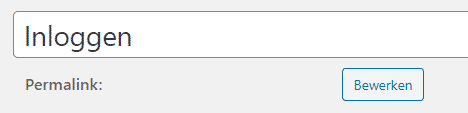
Indeed, it is that simple. Creating a WordPress login page is done by simply creating a new page. Give the page a name, for example ‘Login’, and save the page. Note: the title determines the login URL. In this case, the login page becomes /login. You can also adjust the permalink if needed.
Step 2: build the login page with Elementor
Once you have created the page, click ‘Edit with Elementor’. To add the login functionality, use the Login widget from Elementor Pro.
Regarding design, you do not need to reinvent the wheel — Elementor already offers two templates you can use:
- Click the folder icon to go to the Elementor library
- Search for ‘login’ and insert one of the templates
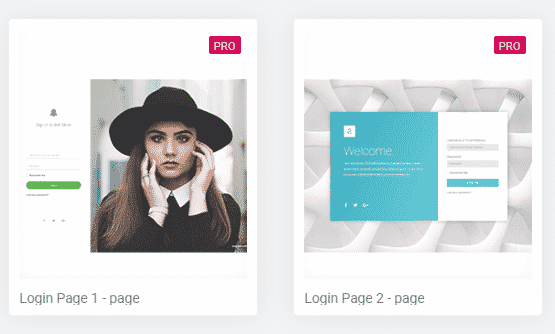
The templates can be customised to your liking. For instance, you can add your own logo, adjust colours, insert a background image or add social media buttons.
- Set the page layout to ‘Canvas’
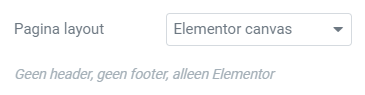
Want your users to log in without distractions? Then set the page layout to Elementor Canvas. This disables the website’s header and footer, so users only see the login screen.
- Click the cog icon at the bottom left
- Set page layout to ‘Elementor Canvas’
Step 3: Customise the WordPress login page with Elementor
The login widget offers a number of additional options:
Customise fields
Set whether or not you want to display labels next to the fields. Or adjust the size of the fields.
Customise the button
Specify what text should appear on the login button, how large the button should be and which alignment you want to use.
Redirect after login
Want to redirect users to a specific page once they have logged in? (for example to the homepage or webshop page) Then set up a redirect. You can also set a redirect after they have logged out.
Customise labels
The login form defaults to English labels. You can customise these by setting ‘Custom label’ to ‘Yes’. Then enter new labels. Unfortunately, there is not yet an option to customise the ‘Remember me’ text.
Hide the default login page
Note: the /wp-admin login page still exists with this method. Want to ensure your users no longer log in via this page? Then use the WPS Hide Login plugin and change /wp-admin to a different variant (not the name you just used for your new login page). This plugin is handy to use for your website’s security in any case.
Tip: WordPress login page link in the footer
Do you have a membership website or a webshop? Or another type of public website where users can register or subscribe? Then also place a link to the login page in your website’s footer.
Prefer to use a popup instead of a page? That is also possible.

About the author
Leon
Founder and WordPress Developer
Leon Katz founded WP Agency driven by his passion for WordPress and web development. With over 20 years of experience in the technical sector, he helps…
Learn more about this author →