Create a popup in WordPress? When you work with Elementor Pro, you do not need an extra plugin for this. Nor do you need to add code from your mailing tool to your website (although you certainly can). There are various reasons to create a popup in WordPress: directing visitors to a promotion, getting them to subscribe to a newsletter, or for displaying a contact form or a video. You can also use popups to create a mega menu.
On our website, we also use various popups, all created with the popup builder from Elementor Pro. In this article, I will explain how to create a popup for a newsletter.
Tip: also read how to create a popup for a video!
Step 1: create a new popup
To create a new popup, go to Templates -> Popups. Then click ‘Add New’.
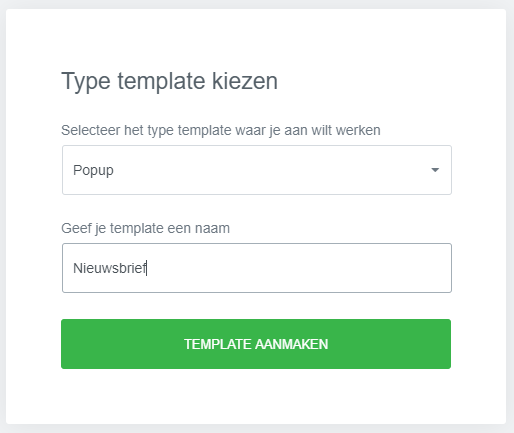
Step 2: choose a popup template
When you first work with creating popups in WordPress with Elementor Pro, it is handy to start with a popup template from the Elementor library. There is a wide selection of different popups to choose from.
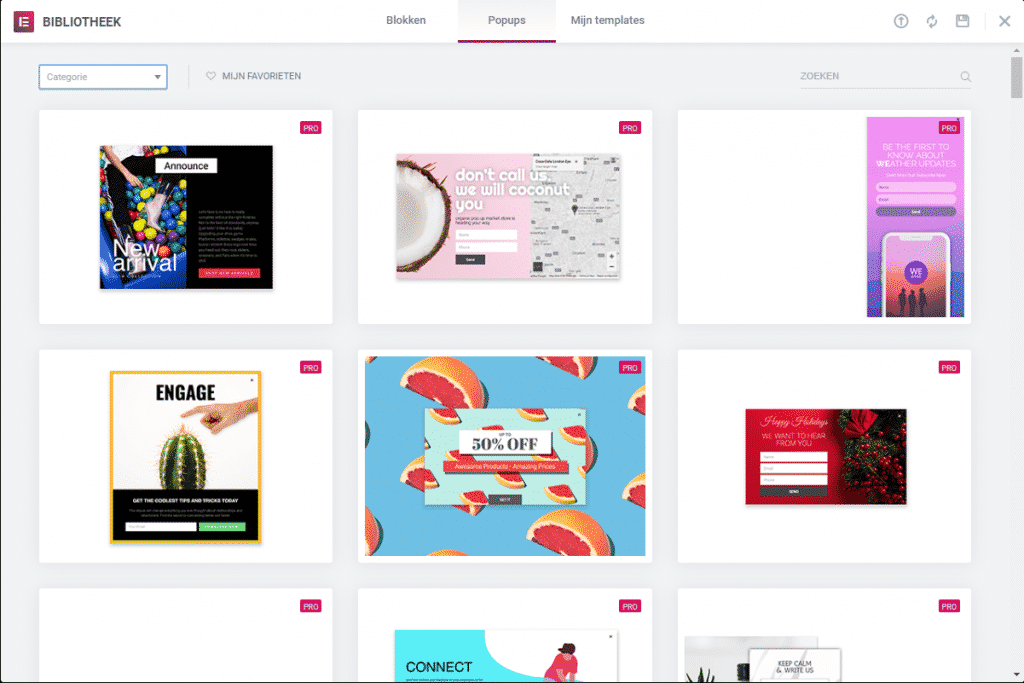
Popup categories
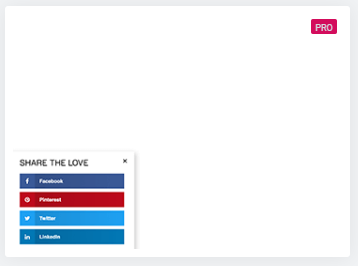
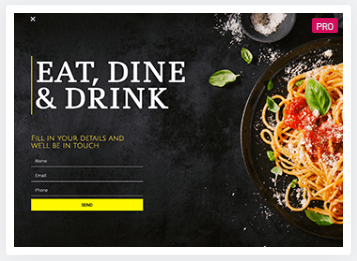
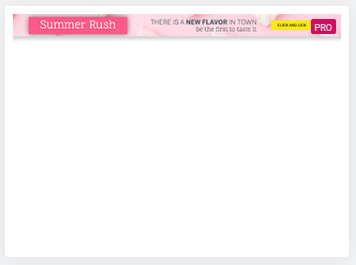
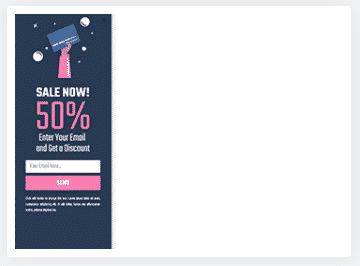
You can create a popup in WordPress in various ways. For instance, you can set up a hello bar, a full screen popup or a slide-in popup. See the examples below:
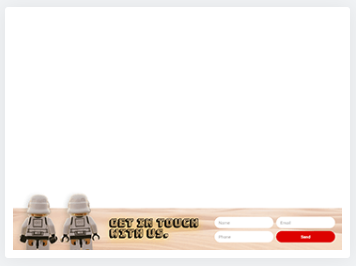
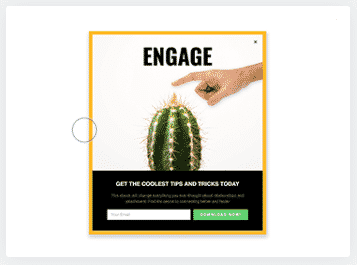
Step 3: customise the popup
Creating the popup works in the same way as designing pages with Elementor. However, there are a few important settings specific to popups. Let me walk you through them:
Popup settings
Under settings (click the cog icon at the bottom left of your Elementor panel), you will find the popup settings.
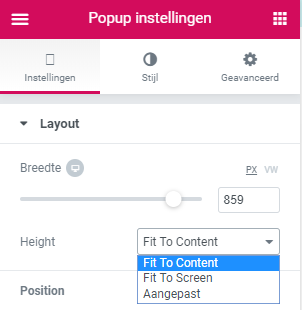
Adjusting popup width and height
Depending on what kind of popup you want to create, you can adjust the popup width here. To set the popup height, you have three different options:
- Fit to content: height depends on the content you use
- Fit to screen: popup height matches the visitor’s screen
- Custom: this allows you to set the popup height yourself
I personally usually use ‘Fit to content’.
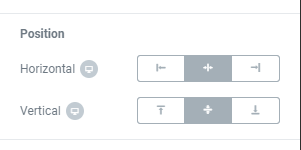
Adjusting screen position
With ‘Position’, you adjust the popup’s position on the screen. For example, you can display it in the centre, top right, bottom left, bottom centre, etc.
Overlay
The overlay gives the background (your website) a colour so the popup stands out more. For instance, you can make it slightly darker to make the popup more eye-catching. You adjust the overlay colour in the ‘Style’ tab.
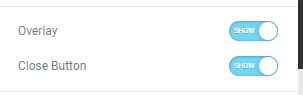
Close button
It is good practice to include a close button in your popup. Enable this option. In the ‘Style’ tab, you can adjust the colour and size of the close button.
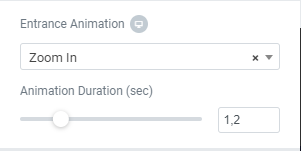
Entrance animation
This allows you to set the animation with which your popup is displayed. For example, a zoom in, fade in, bounce up, etc.
Customising the design
The design and content of the popup can be customised in the same way as you design pages with Elementor. Would you like to change the popup’s background image? This works slightly differently from what you are used to in Elementor.
Do not forget to optimise the popup for mobile devices as well.
Step 4: add a sign-up form
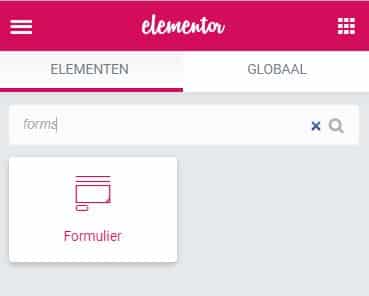
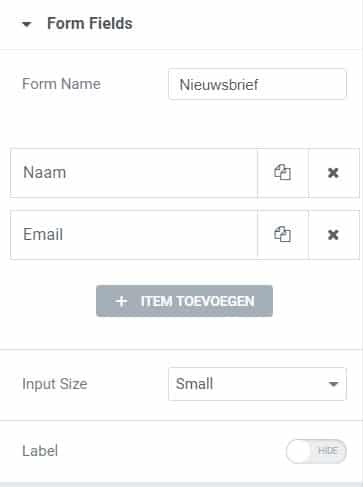
If you are creating a popup for a newsletter, you need to add a form (it may already be included in the template you chose). This works in the same way as adding a sign-up form on a page. You can also connect the sign-up form directly to your mailing tool.
Step 5: publish the popup
When you have finished designing the popup, you can publish it. You will then see a number of settings:
Set display conditions
With display conditions, you can set on which pages or in which categories you want to show the popup. You can also exclude certain pages.
Set triggers
With popups, it is important to enable the right triggers. Elementor offers an extensive selection of triggers. See below:
- On Page Load: Set how long after the page loads you want the popup to appear.
- On scroll: Show the popup when a visitor scrolls down or up.
- On scroll to element: Display the popup when the visitor scrolls to a specific element on the page.
- On click: Shows the popup when the visitor clicks somewhere on the website.
- After inactivity: Shows the popup when the visitor appears to no longer be active on the website.
- On page exit intent: Show the popup when the visitor is about to leave the website.
Set rules
Additionally, there are a number of options when setting up the popup. With these, you can prevent a popup from being shown too frequently to your visitors. You can also disable the popup for logged-in users. Below is an overview of all options:
- Set after how many page views you want to show your popup
- Show the popup only after a number of sessions
- Specify how often you want to show the popup
- Hide or show the popup when a visitor comes from a specific URL
- Show the popup when visitors come via a search engine, internal URL or external URL
- Disable the popup for logged-in users (recommended if you frequently work with Elementor yourself!)
- Specify on which devices you want to show the popup
Showing the popup on click
Want the popup to only appear when someone clicks a button, for example? Then you do not need to set any conditions, triggers or rules for the popup and can simply close the screen above. To show the popup, you use a ‘dynamic URL’ when adding the button. You choose ‘Popups’ and then select the popup you created.
Tracking popup statistics
If there is one drawback to mention, it is that the ability to track statistics is missing. You cannot see how often the popup was shown and what the conversion rate is. As a marketer, I consider this a significant omission. If you find this less important, I can certainly recommend creating a popup in WordPress using Elementor!
Good luck!

About the author
Leon
Founder and WordPress Developer
Leon Katz founded WP Agency driven by his passion for WordPress and web development. With over 20 years of experience in the technical sector, he helps…
Learn more about this author →