Unfortunately, it is quite common for Elementor not to load properly. It is important to mention that this happens in many cases and you should definitely not panic. In most cases, it is simply a setting.
In this article, I will show you the 7 most commonly used solutions.
Make a backup
The golden rule for working on a WordPress website is to make a backup. Always ensure you have a backup. You can then always fall back on it should the need arise.
1. Does not work with other plugins
The most common Elementor problem is that it does not work with another plugin on your WordPress website. Deactivate all plugins on your website except Elementor and Elementor Pro.
Then check whether Elementor loads correctly. If Elementor loads properly, you are likely dealing with a plugin that does not work well with Elementor. To determine which plugin is causing the issue, start activating your plugins one by one and check after activating each plugin whether Elementor still works. This method always takes a bit of time, but it is a super effective approach.
2. Check PHP version and PHP memory limit
If the web hosting server is running an outdated version of PHP or has a limited PHP memory allocation, this can also lead to an “Elementor not loading” error. Elementor recommends using PHP 7.0 or higher for the best performance with a memory limit of 128M or higher. If your site uses Elementor add-ons and third-party plugins, it is advisable to use a higher memory limit.
3. Check the .htaccess file
If your website runs on an Apache server (the most commonly used hosting system), your website uses a file called .htaccess.
Incorrect settings in the .htaccess file can also disrupt functionality. Before making changes to the .htaccess file, we recommend making a backup of it.
Add the following code to your .htaccess file to get Elementor working properly:
<IfModule mod_substitute.c>
SubstituteMaxLineLength 30m
</IfModule>
LimitRequestBody 9999999
With a .htaccess file, you can, amongst other things, block IP addresses, redirect (basic redirects), customise error messages, enable the rewrite engine (useful if you use rewrite rules) and secure certain directories.
4. Adjust the editor loader
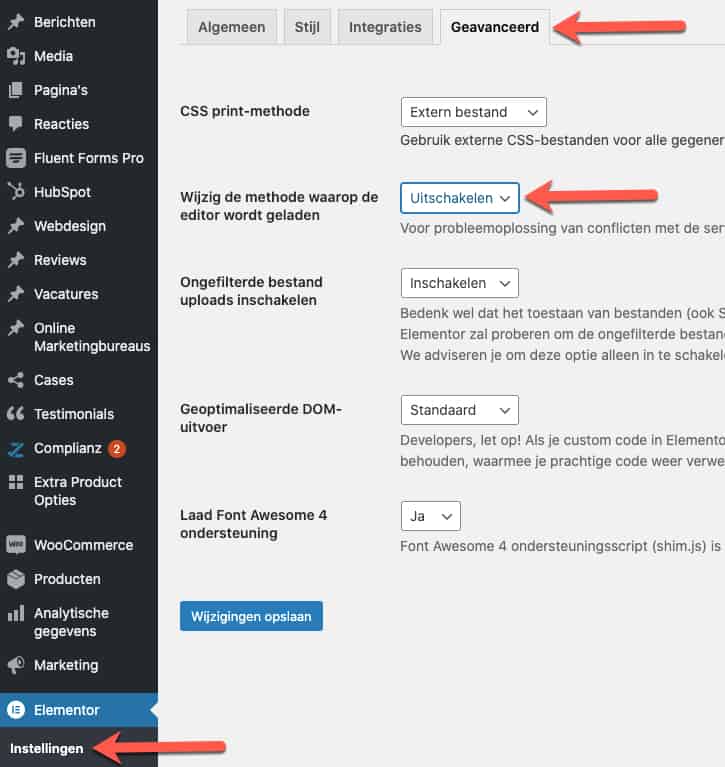
Elementor offers an option to change the loading method of the front-end editor. Technically, we do not have much explanation about what it precisely does. I would simply try it. Use the switch front-end editor loader method option. You will find it in the Elementor settings in your WordPress Dashboard (see the screenshot below). Enable this option and check whether the problem is resolved.
5. Update all plugins
Sometimes the solution is easier than you think. Elementor continuously updates its software. It can therefore happen that the latest version of Elementor no longer works with the plugin you have installed. We always recommend waiting before installing the latest version of Elementor until you are certain it works.
6. Revert to an older version of Elementor or Elementor Pro
In some cases, it can be useful to revert to an older version of Elementor. Certain hosting providers automatically update your plugins. We always strongly advise against this. Fortunately, this is a breeze within Elementor.
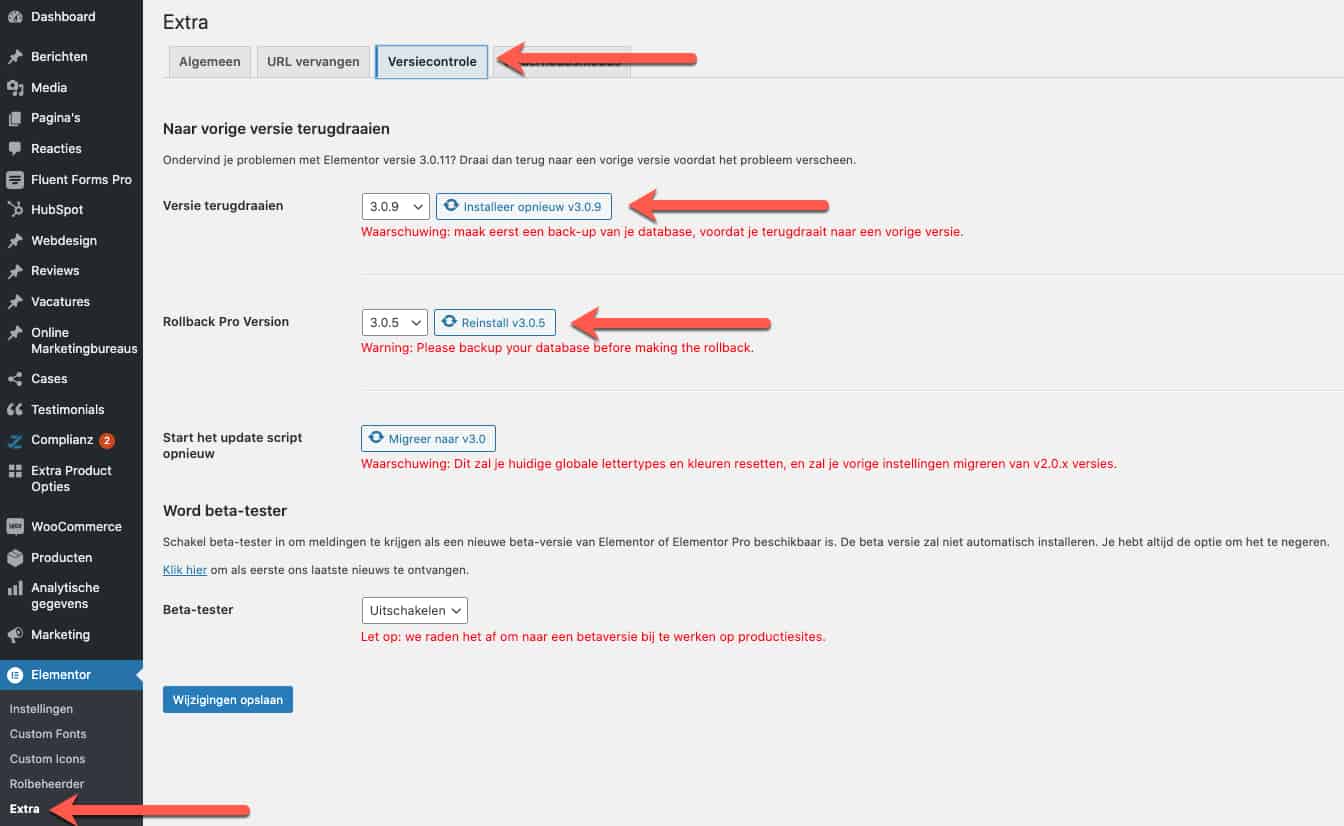
In the back office, go to Elementor -> Tools > Version Control. Here you can click on roll back version; you can choose between Elementor and Elementor Pro. If you are going to roll back, I would always roll back both versions (Elementor and Elementor Pro). See the image below.
7. Use a different browser and not Internet Explorer
Elementor works best with Chrome, Safari and Firefox. Since Elementor 3.0 was released, the company behind Elementor has discontinued support for Internet Explorer. We therefore also advise our clients not to use Internet Explorer any longer. We have also heard reports that Edge does not work optimally with Elementor. Within our team, we use Google Chrome as much as possible.
Cannot figure it out? Our Elementor experts can help you — from troubleshooting to full optimisation.

About the author
Leon
Founder and WordPress Developer
Leon Katz founded WP Agency driven by his passion for WordPress and web development. With over 20 years of experience in the technical sector, he helps…
Learn more about this author →