Creating an Elementor webshop is quite straightforward. Elementor works well together with WooCommerce, the plugin for WordPress when you want to build an online shop. Elementor gives you more flexibility in building the shop page, single product pages and product category pages. You start by setting up the webshop, in other words: the shop page.
NOTE: Are you planning to grow your webshop and do you want a functionally sound and fast online shop? Then we recommend having your webshop custom built.
Elementor webshop: setting up the shop page
If you are familiar with WooCommerce, you will know that a particular page is set as the ‘Shop’ page. This is a standard template, where the styling depends on the theme you are using. If you build a webshop with Elementor Pro, you can determine exactly how the shop page will look.
Before you start, it is handy to add some products to your webshop first. This makes it easier to make adjustments and tweak styles.
Creating a shop page
Go to Templates – Theme Builder – Add New. Select ‘Product archive’ and give the template a title such as ‘Webshop’.
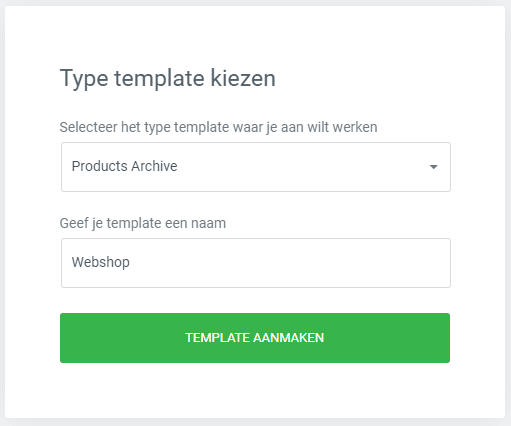
When you set up a new archive page for your webshop, you will immediately see a few possible templates. Generally, a shop page is not very exciting in terms of design, so there is not much difference between the templates.
Choose one of the templates or close the screen to create your own template.
Elementor webshop widgets
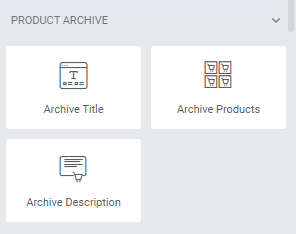
When you start creating the shop page, you can use a number of widgets for this purpose. You will see these at the top of the Elementor panel.
Archive title: loads the page title (in this case the title you set for your shop page. By default in WooCommerce this is called ‘Shop’).
Archive products: displays all products in your webshop
Archive description: shows the page summary
The difference between product archive widgets and WooCommerce widgets
Below the archive widgets, you will also see a number of WooCommerce widgets. In principle, you could also build the shop page using these widgets. Why is that not ideal?
Your shop page is an archive page because you often use search filters for it. Many themes include this functionality. This allows your visitors to sort by popularity, average rating, price or newest products, for example. You see this functionality immediately when you add the ‘Archive Products’ widget to the page. If you use the ‘Products’ widget, you will not see this functionality.
Filters in the webshop
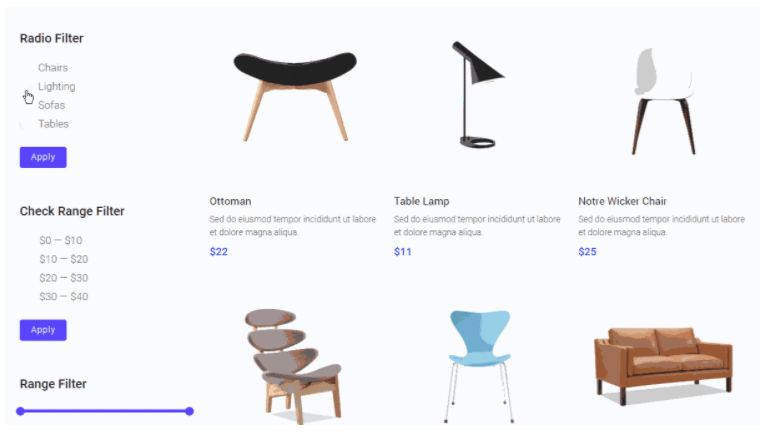
You can also use filters on archive pages. Filters are not (yet) a standard feature in Elementor, but there are add-ons such as JetSmartFilters that allow you to set up filters (e.g. colours / sizes / category / tags etc). This only works if you have set up the page as an archive page and used the archive widget for it.
Below you can see the filter options available with JetSmartFilters.
Styling the shop page
When you start editing the archive products via the ‘Style’ tab, you will see a message here:
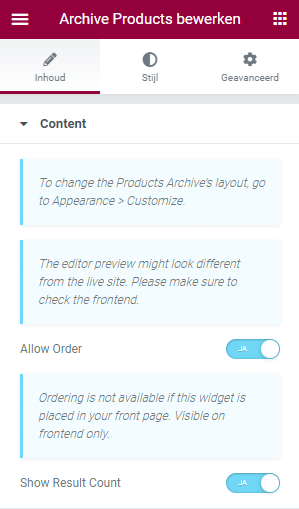
This means that the layout of your shop page depends on the theme you are working with. Many free and paid themes include features for styling the webshop. These cannot always be overridden with Elementor’s styling options. You will discover this as you work with the styling options. If you use the Hello Theme from Elementor, you can certainly use all styling options.
Additionally, you can of course add extra content to this page as you wish.
Publishing the webshop
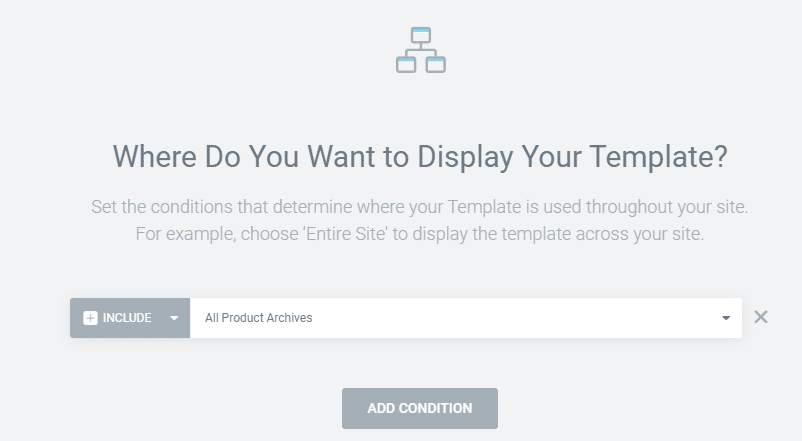
When you are finished with the layout, you can publish the shop page. You do this by clicking the green ‘Publish’ button at the bottom right of the Elementor panel. A new screen then opens where you can choose where to publish the template. In this case, you want to set this page as the Shop page. So you select ‘Shop page’ here.
You have now set up the shop page with Elementor!

About the author
Leon
Founder and WordPress Developer
Leon Katz founded WP Agency driven by his passion for WordPress and web development. With over 20 years of experience in the technical sector, he helps…
Learn more about this author →